| Navigation |
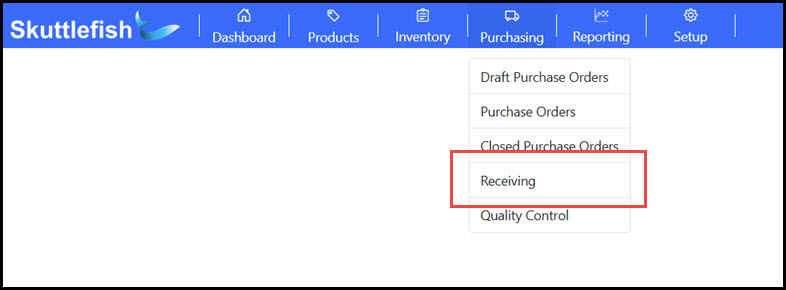
The Shipment Receiving grid is accessible by navigating to Purchasing > Receiving.
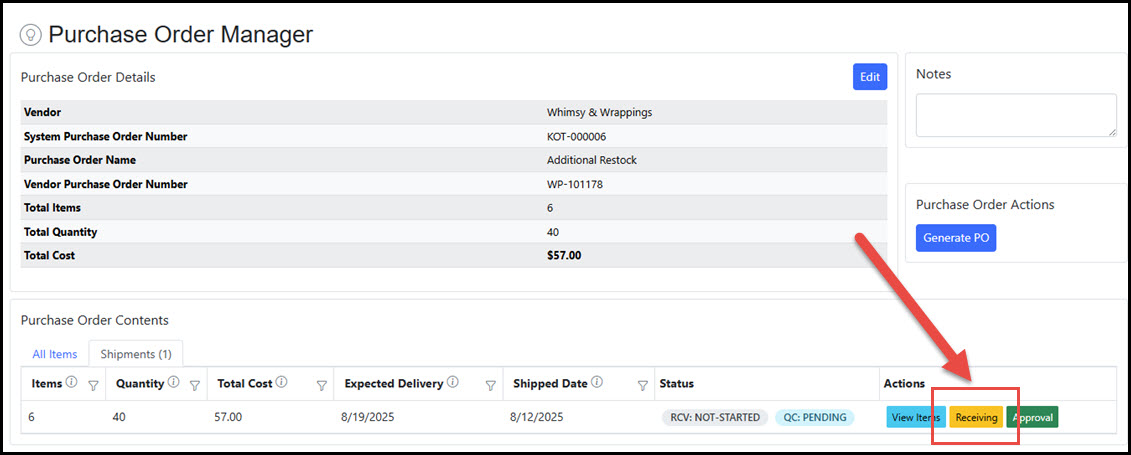
 The Purchase Order Manager also shows a Receiving button on every shipment record; when the shipment is In-Transit, it links straight to the Shipment Receiving record.
 |
|---|
| Shipment Receiving Grid |
The Shipment Receiving grid displays all active shipments where the Receiving stage is "In-Progress". It supports searching, filtering, and sorting, and also allows you to export the data to Excel or PDF formats. Select a Purchase Order from the grid to view or manage its details.
 |
|---|
| Overview |
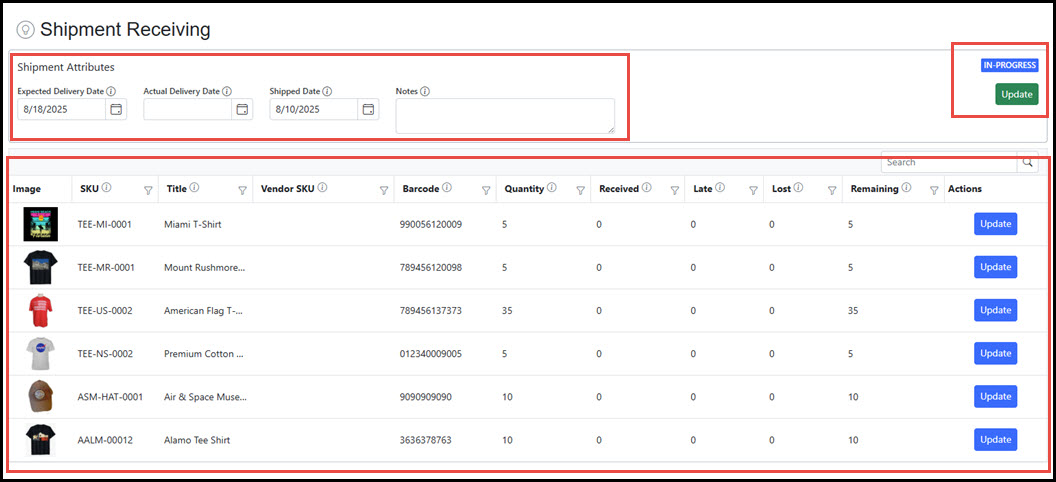
To view or manage a Shipment Receiving record, select it from the grid or navigate directly from the Shipment record. The Shipment Receiving Manager displays key shipment dates and details of the items in the shipment. Click the Update button to update the delivery dates and add or modify notes.
 |
|---|
| Shipment Receiving Entry |
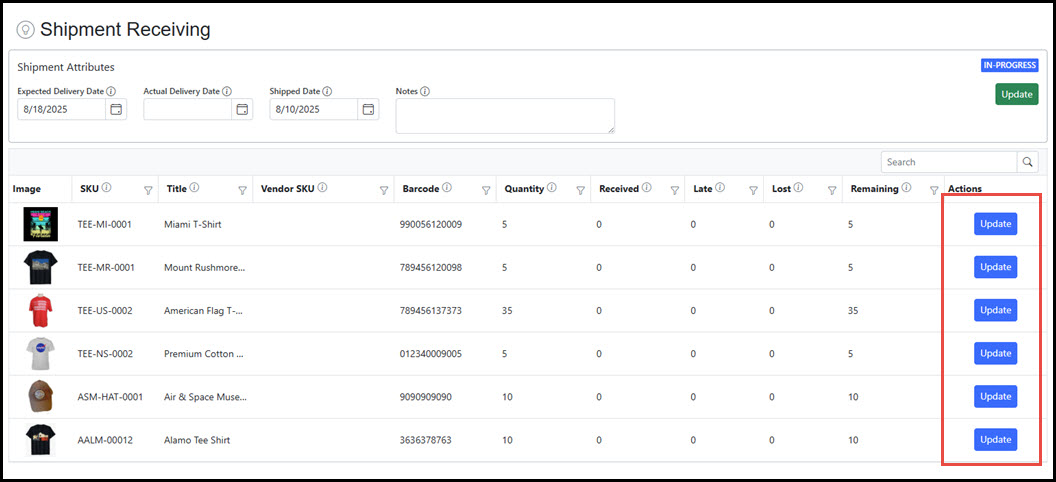
To log the items received in a shipment, click the Update button for the item to access the Receiving Entry screen.
 |
|---|
| Shipment Receiving Entry |
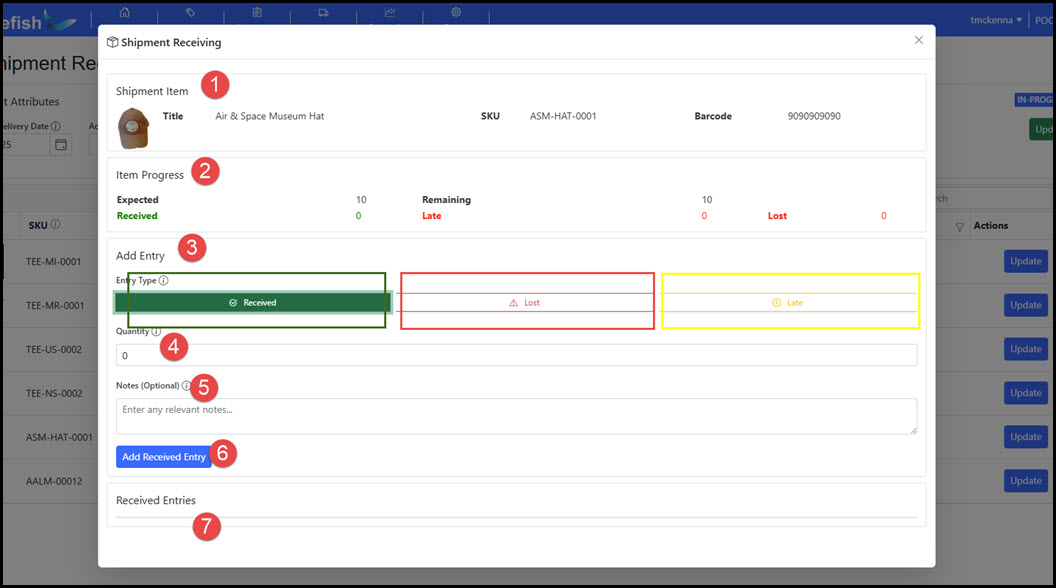
In the Receiving Entry popup, the user can enter product counts as received, late, or lost for the selected item in the current shipment. Below is a labeled view of the Receiving Entry screen and a brief description of each:
- Shipment Item: The current SKU information.
- Item Progress: The progress of the items in the shipment. Tracks the expected amount in the shipment, received amount, any counts flagged as late or lost, and any remaining that has not been processed.
- Entry Type: Quantity entry type, select the type to enter.
- Quantity: The amount to enter.
- Notes: Optional notation with the entry.
- Add Received Entry Button: Click to enter the Quantity amount.
- Received Entry: Log of entries for the item in the shipment.
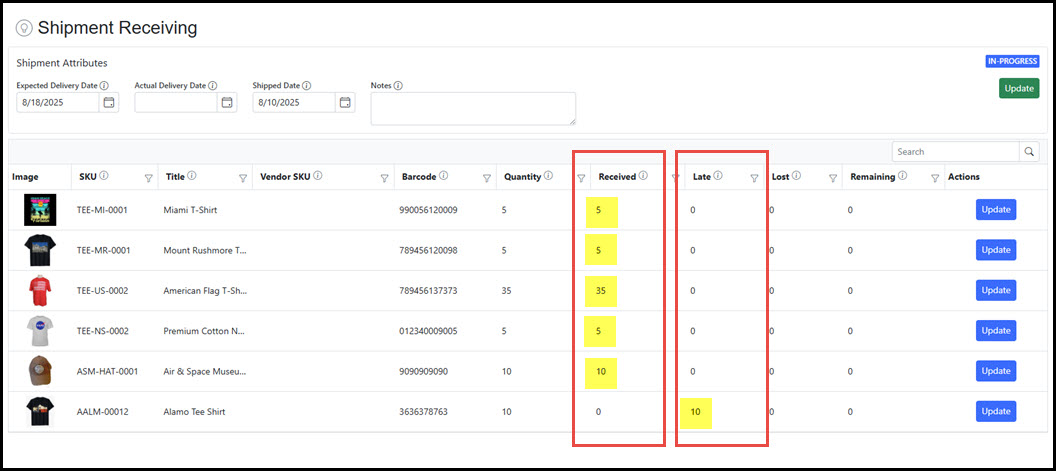
 The receiving process for a shipment continues until all items are entered. As items are entered, the Shipment Receiving Manager grid displays updated counts of the entries. In the example below, all items in the shipment have been entered with five items fully received and one item with a count of ten is flagged as "Late".
 |
|---|
| Shipment Receiving Stages |
Shipments move through a series of stages that track the status of the receivable during the process of delivery through to approval. The system automatically updates this status at specific points in the process.
- Receiving: Pending – This is the first status assigned when the shipment is created during the submission of the Purchase Order (or when a shipment is created from a split or replacement). The shipment Receiving status remains Pending until it is marked as “In-Transit” in the system.
- Receiving: Not-Started – When the shipment is marked as "In-Transit" (the shipment has been sent from the supplier). The shipment Receiving status remains in "Not-Started" until the receiving team processes any of the contents of the purchase order into a "Received", "Lost", or "Late" status.
- Receiving: In-Progress – Once an item is manually entered into the Shipment Receiving process, the status of the shipment moves to "In-Progress". The shipment remains in the "In-Progress" status until all items have progressed through the receiving, quality control, and approval process and the shipment is closed.
- Receiving: Complete (Closed) – When all items have been processed through receiving, quality control, and approval, the shipment receiving stage is automatically set to "Complete/Closed". Note: The receiving stage remains "In-Progress" for the duration of receiving, quality control, and approval.
|
|---|