| Purpose | This section provides an overview of the Shipment Review and Approval process. |
|---|---|
| Introduction | The Shipment Review and Approval stage is a final assessment of a shipment that has been received and quality control checked. During the receiving and quality control process, items in the shipment may be categorized as accepted or damaged, lost or late. All items for the shipment must be evaluated in the review and approval screen in order to fully process the shipment. |
| Sections | This topic includes the following sections: |
Search:
| Topic | Section | Sub-Section | Item |
|---|
Shipment Approval
Topic Overview
Shipment Review and Approval
| Navigation |
The Shipment Review and Approval screen is accessible by clicking the Approval button on the Shipment.
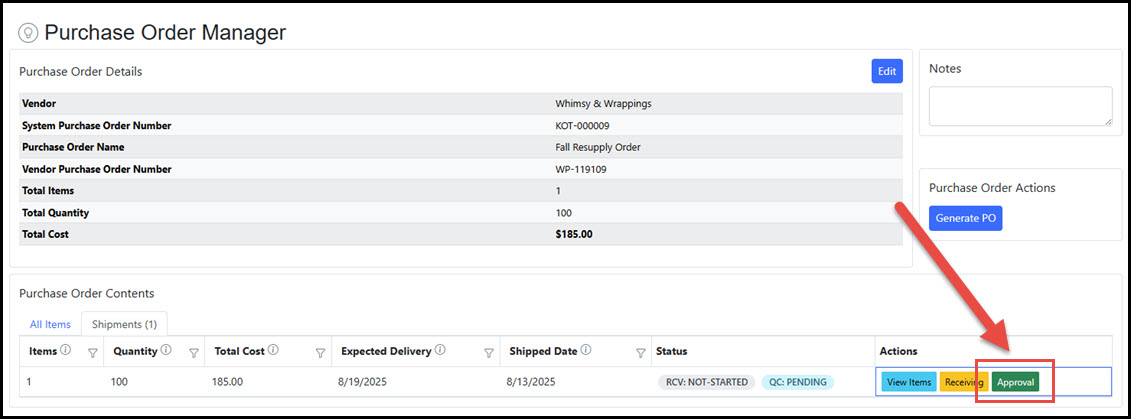 The Approval button is available immediately when the Shipment is marked as In-Transit. While the screen is available through the process, the approval confirmation cannot be executed until all items in the shipment have been processed through the receiving and quality control process.
|
|---|---|
| Overview |
The screen displays the summary of the shipment in the upper region and organizes the item level detail in the remainder of the view, including the approval status of each. Below, the red attention icon denotes the items in need of review and approval. Also, the Approval button in the upper right is disabled until all items in the shipment have been reviewed.
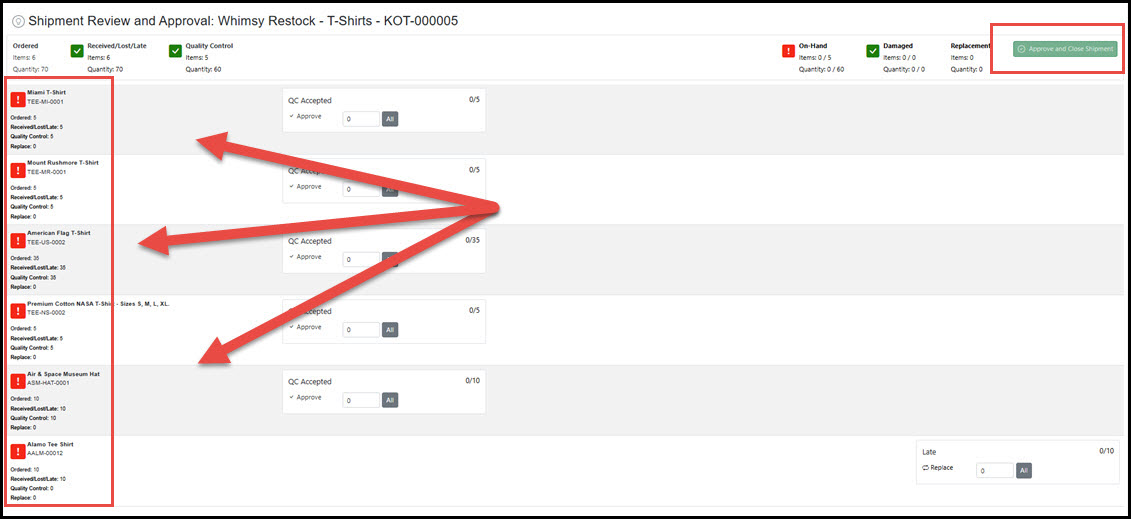 Each row on the Shipment Review and Approval screen represents actual SKUs ordered in the shipment and the counts that have been received (or not received) through the delivery review and quality control process. The steps here consist of:
|
Review and Approval Process
| Approval |
Counts for each SKU need to be approved by assigning them to either QC Accepted, Lost, or a Late status. Users can key in counts or click All to approve all for the SKU. As item counts are fully assigned, the icon to the left of the row will change to green to denote "Complete"
In the very simplified example below, all counts of all items in a shipment have been marked as "Received" by Shipment Receiving and "Accepted" by Shipment Quality Control. The Approval screen displays:
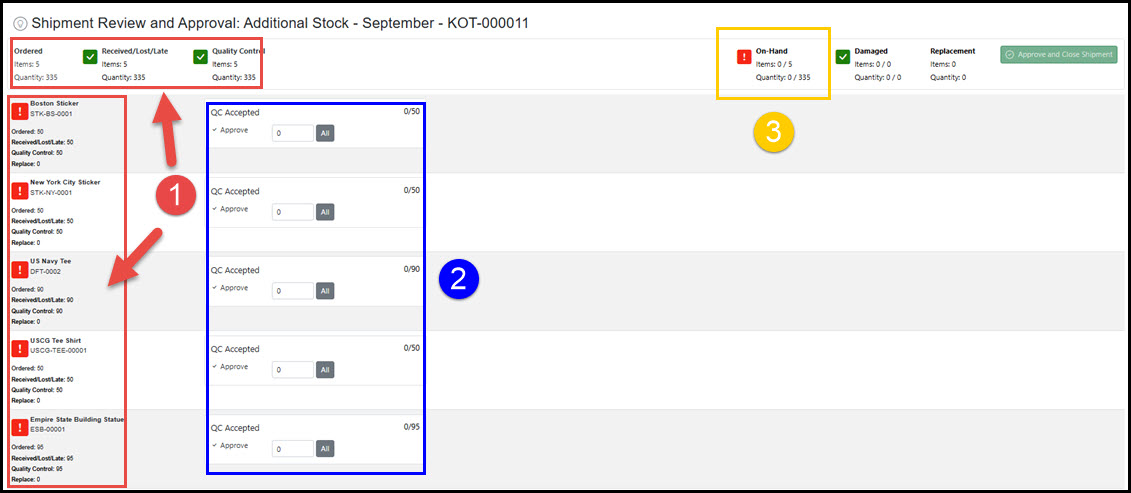 Either enter the count or click All in the QC Accepted box for each SKU to approve the count. Once fully approved, the item icon will change to to mark it as complete. When all items in the shipment are approved, the Approve and Close Shipment button is enabled.
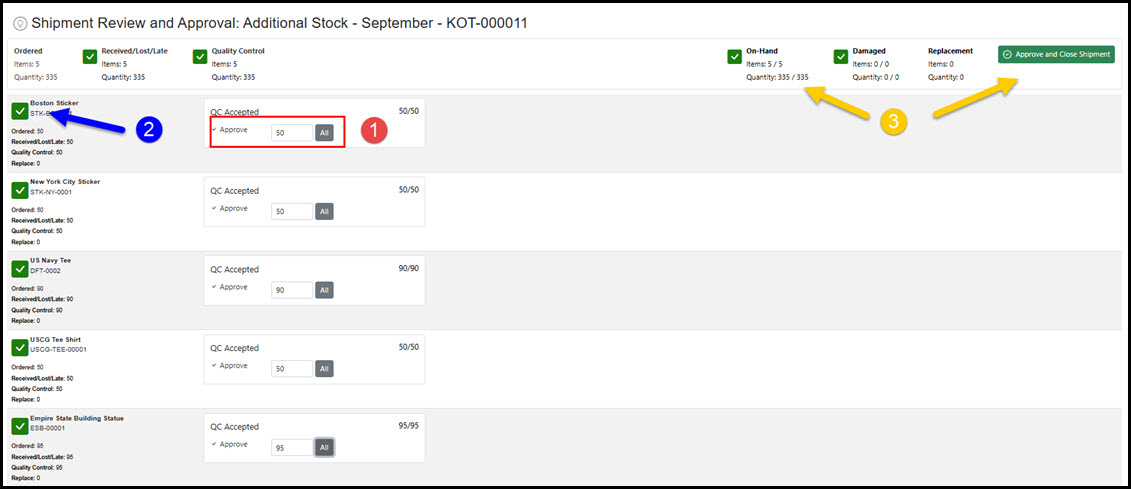 Once all counts for the items are approved, the shipment can be fully approved by clicking the Approve and Close Shipment button. This marks the Shipment as Closed/Complete. Note: Currently the Shipment Review and Approve screen cannot be saved. All review, approval, and submission must be completed in a single session on the screen without saving and returning. Leaving the page will lose all progress.
|
|---|
Partial Shipment Delivery Exceptions
| Overview |
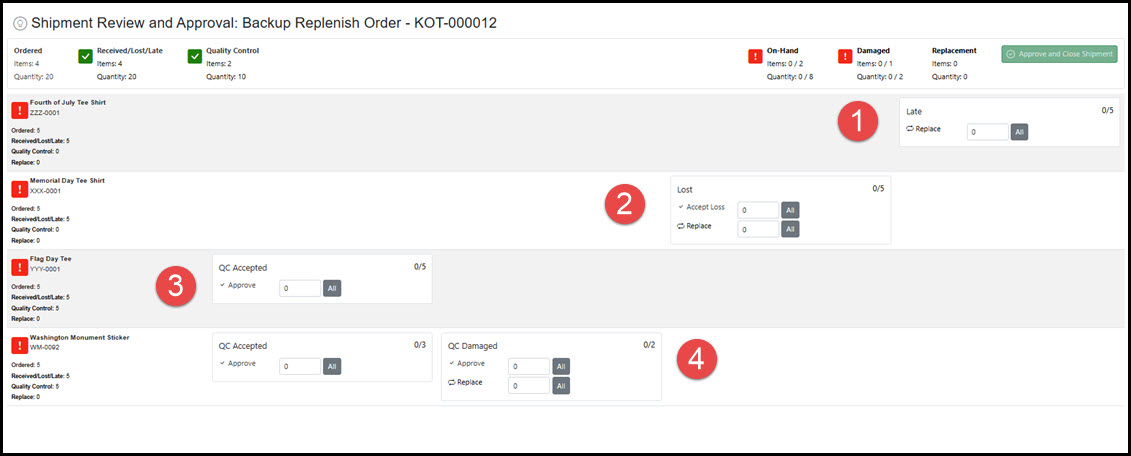
Quantities that are categorized as Lost or Late during the receiving and quality control process need to be managed differently than fully delivered and accepted product counts. As shipments go through the receiving/QC process, quantities and items can be categorized as late, lost, or damaged. The Shipment Review and Approval screen allows the user to determine how to process each exception event.
In the summary example below, the shipment included several exeptions during the in-transit, receiving, and quality assurance process:
 |
|---|---|
| Partial Delivery - Late |
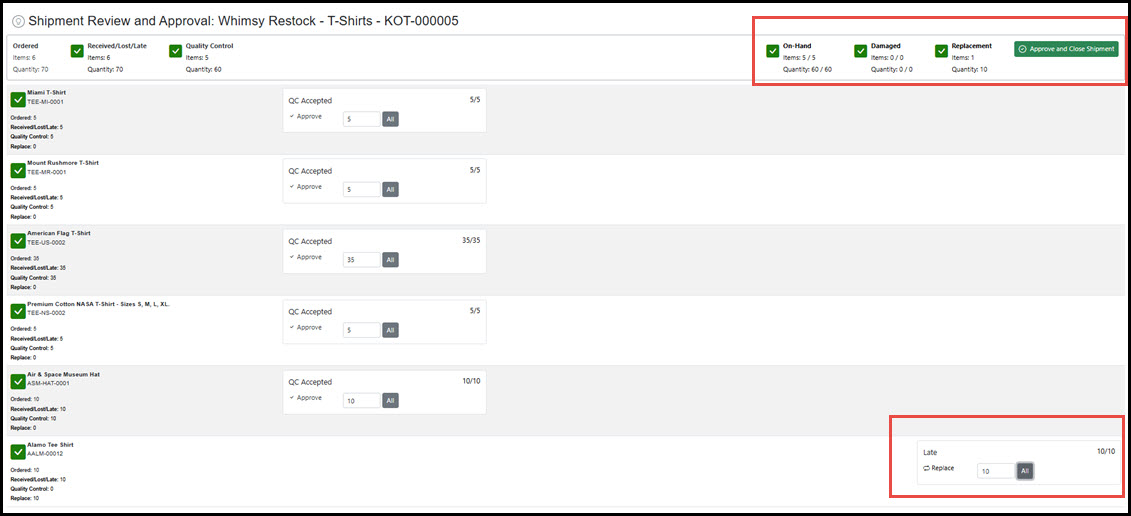
In the example below, an item in the shipment was flagged as Late during the Shipment Receiving process. Now, during the approval process, this may be managed in two ways in order to process the full shipment of product:
 |
| Partial Delivery - Lost |
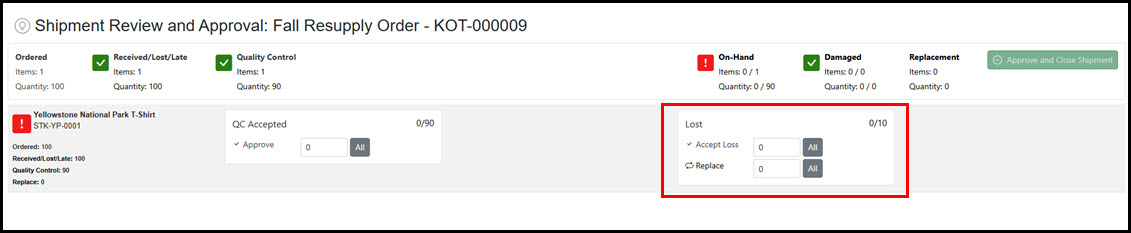
In this example, an item in the shipment is communicated as lost from the supplier and updated in the system during the Shipment Receiving process. At the Review and Approval process, the following may occur for the full shipment and lost portion:
 |
Shipment Quality Control Exceptions
| Damaged |
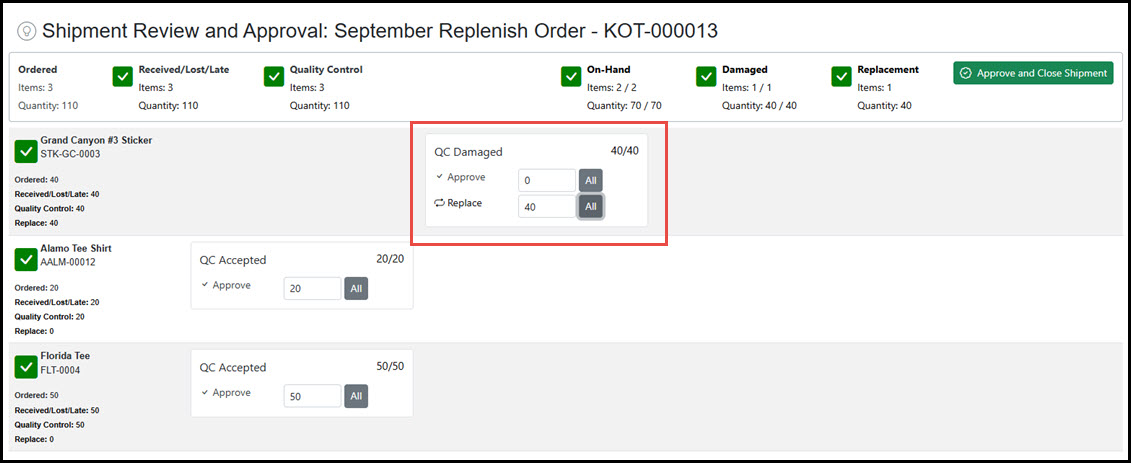
In this example, a delivery included a quantity of 40 for an item that were deemed damaged during the quality assurance inspection after delivery. This count was entered into the system Shipment Quality Control as "Damaged". Similar to when part of a shipment is lost, there are three options available to manage the shipment and damaged product:
 |
|---|
Replacement Shipments
| Overview |
When approving a shipment with item counts that are "Lost" or "Damaged" and marked as "Replace" in the Review and Approval process as outlined above, the system will automatically generate a new replacement shipment on the Purchase Order for the amount(s) flagged.
The new shipment is managed like any other natural shipment - including priving adjustments, splitting into additional shipments, etc. The shipment is then tracked from In-Transit to Approval like other shipments in order to manage the remaining product counts being delivered.
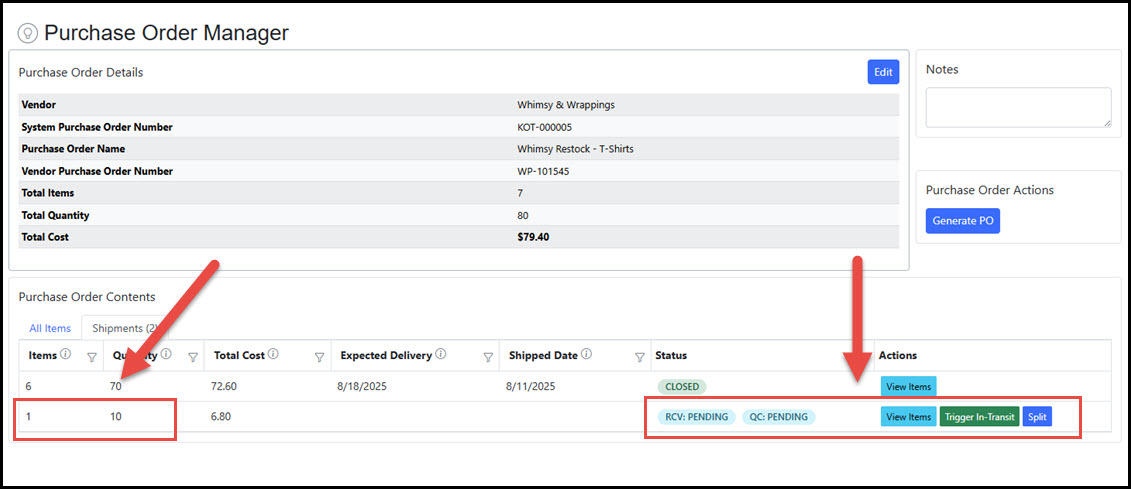
In the illustration below, a count of 10 were marked for "Replace" from an original shipment (which is shown as now Closed). This count is now being tracked in its own new shipment record on the Purchase Order.
 |
|---|
Final Approval Submission
| Overview |
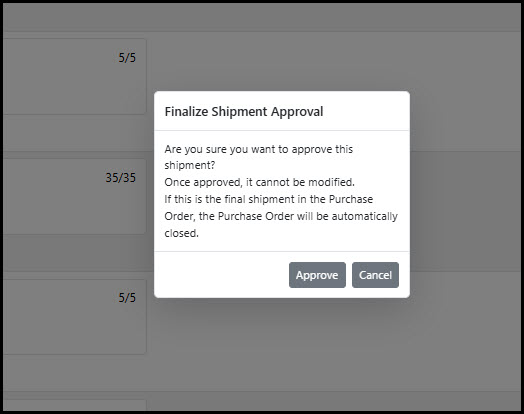
Once all items on the Review and Approval screen are addressed, the shipment can be approved. Approving and closing the shipment requires a final confirmation of submission when the Approve and Close Shipment button is clicked. Note: Because this step "accepts" the received products and introduces the counts to the On Hand inventory in the system, the process cannot be reversed. Any changes after final confirmation would need to be managed through direct inventory adjustments.
 |
|---|