| Purpose | This topic explains the Adjust Damaged feature. |
|---|---|
| Introduction | Adjust Damaged is a way to reduce the current On Hand and Available inventory counts for a SKU due to damaged product. Note that this process does not use the Shopify Unavailable/Damaged counts, rather it behaves like the Adjust On Hand process when a decrease in inventory is processed. |
| Sections | This topic includes the following sections: |
Search:
| Topic | Section | Sub-Section | Item |
|---|
Adjust Damaged
Topic Overview
Adjust Damaged
| Navigation |
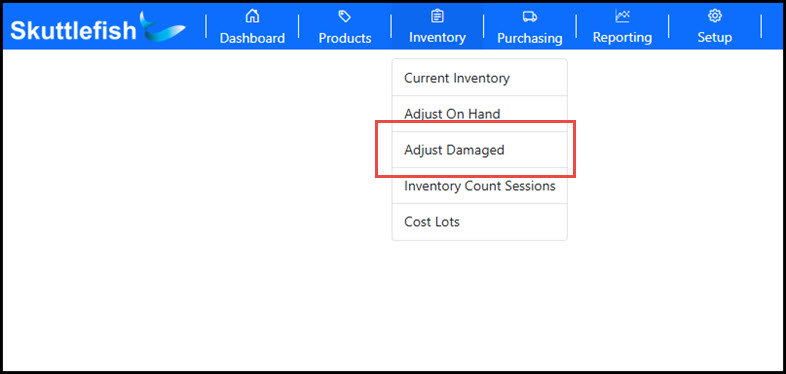
The Adjust On Hand dialog box is accessible by navigating to Inventory > Adjust Damaged.
 |
|---|---|
| Adjust On Hand Dialog |
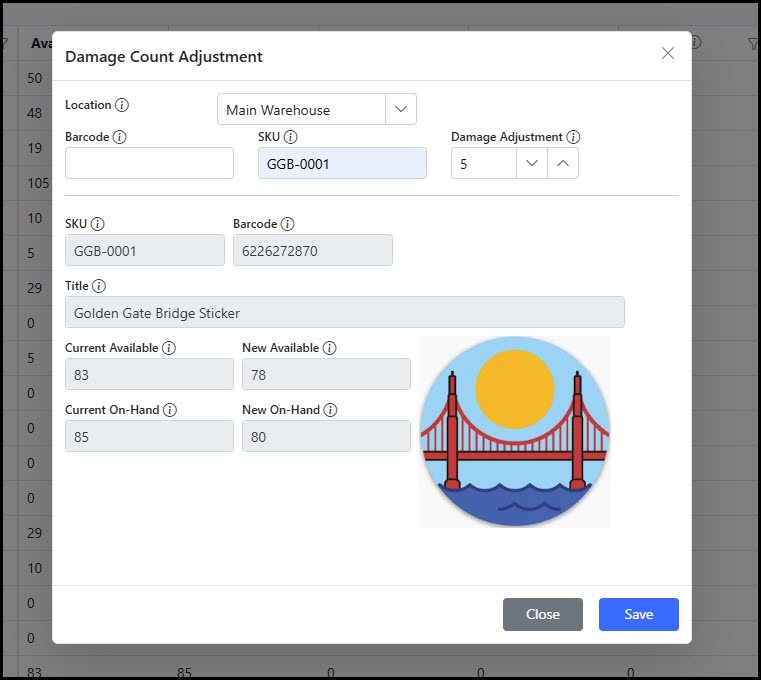
Select the Location and enter either a numeric barcode or SKU to access the SKU to adjust. Use the Damaged Adjustment numeric field to enter the amount to add the amount of damaged product you would like to remove from the On Hand inventory.
Adjust Damage is an additive process. Counts are reduced from On Hand and Available based upon the damaged quantity entered. The New Available and New On-Hand fields will dynamically adjust by reducing the amount entered in Damage Adjustment from the current counts. Click Save to enter the adjustment and the counts are automatically synched with Shopify.
 |
| Shopify Adjustment History | In addition to reducing inventory counts in Shopify, Skuttlefish tracks the damage count as a "Damage" adjustment and archives this along with the change. These specific counts related to damaged product are available via reporting if necessary. |
| Cost Lots | A reduction of inventory using Adjust Damaged automatically impacts the SKU Cost Lots by depleting the Cost Lots on a First In, First Out (FIFO) basis and recalculating the Cost Lot Unit Costs. |
Adjust Damaged - Video Overview
| Overview | The video below provides a short walkthrough of the Adjust Damaged process in the system. |
|---|