| Purpose | This section provides an overview of the Purchase Orders Management. |
|---|---|
| Introduction | The Purchase Order Manager view displays the overall details and allows management of the shipment(s) of items included in the purchase order. The Purchase Order Manager controls the purchase order after the Draft Purchase Order is marked as "Submitted". The Purchase Order Manager works as the hub for the other processes that complete the reception of the shipment and items that were purchased from the vendor/supplier. |
| Sections | This topic includes the following sections: |
Search:
| Topic | Section | Sub-Section | Item |
|---|
Purchase Orders
Topic Overview
Purchase Orders
| Navigation |
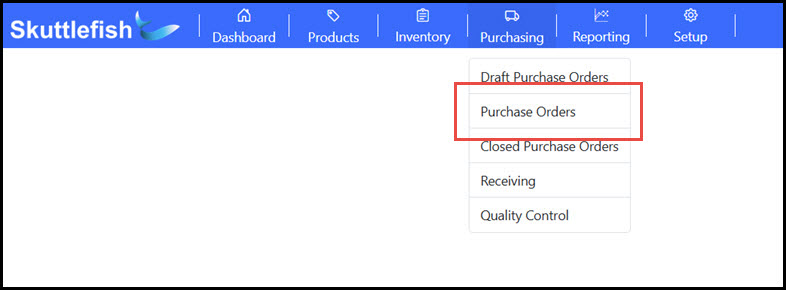
The Purchase Orders Grid is accessible by navigating to Purchasing > Purchase Orders.
 |
|---|---|
| Purchase Orders Grid |
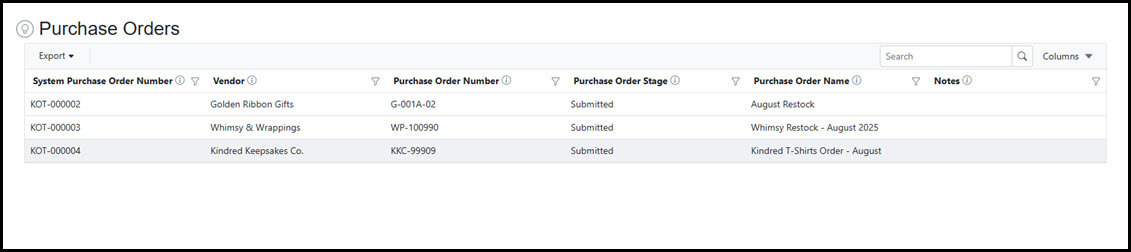
The Purchase Orders grid displays all active Purchase Orders that have been created and submitted to a vendor. It supports searching, filtering, and sorting, and also allows you to export the data to Excel or PDF formats. Select a Purchase Order from the grid to view or manage its details.
 |
Purchase Order Manager
| Overview |
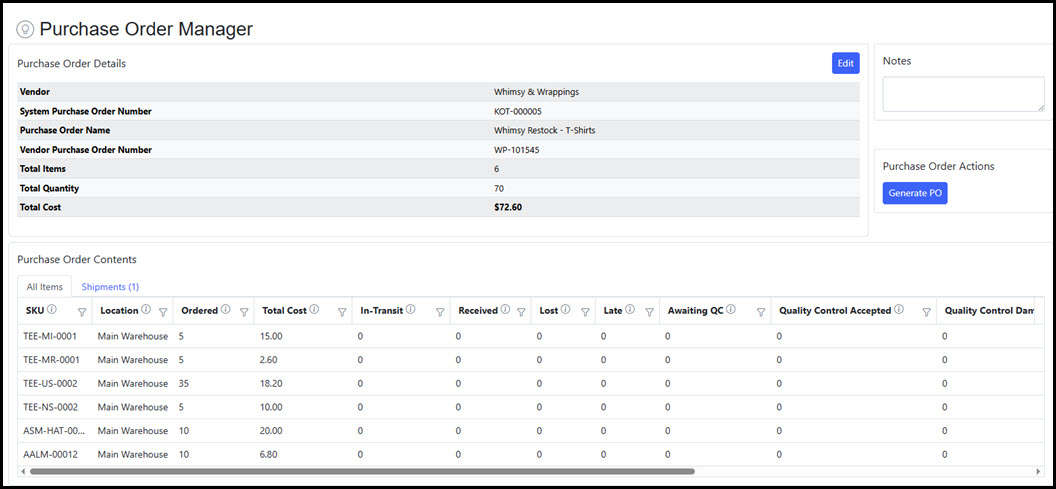
To view or manage a Purchase Order, select it from the grid. The Purchase Order Manager view displays key purchase order details. The purchase order file can be regenerated by clicking the Generate PO button. Click Edit to update the name, Vendor Purchase Order Number, or to add notes.
 |
|---|---|
| Purchase Order Contents - All Items |
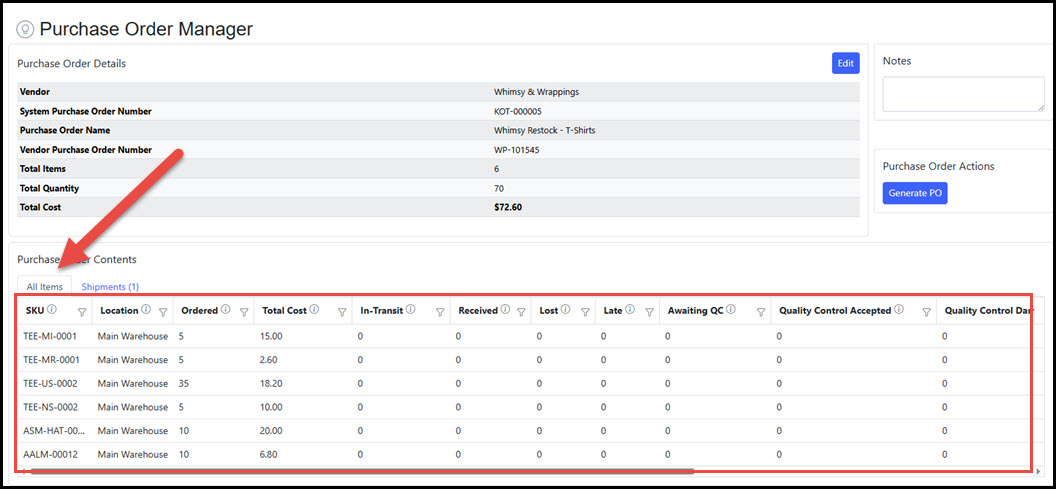
The Purchase Order Contents area includes two tabs for tracking the items in a purchase order. First, the All Items tab displays each product in the purchase order including the quantity, and the status of the items throughout the receiving, quality control, and the approval process.
 |
| Purchase Order Contents - Shipments |
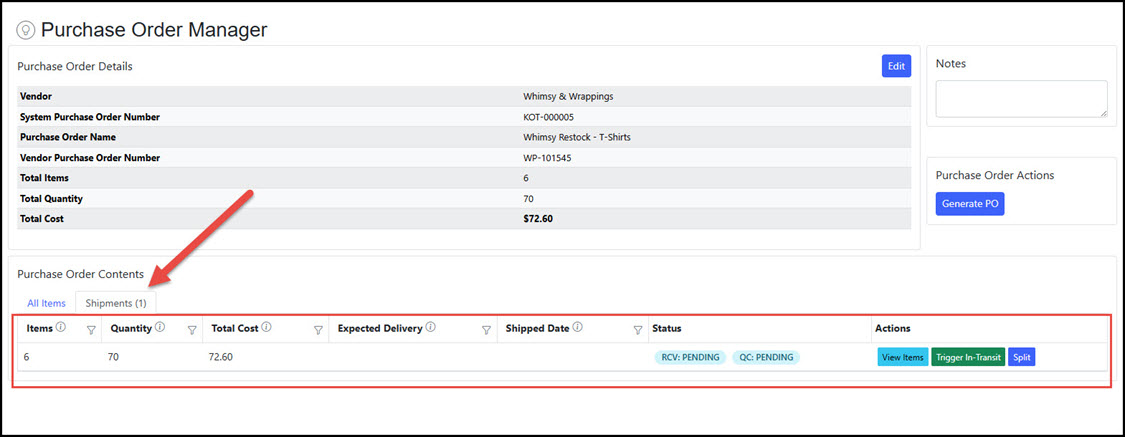
Shipments manage the delivery of items from initial submission through receiving, quality assurance, and approval. Each purchase order may have one or many shipments for a variety of reasons. Shipments may be split in the system before they are marked as In-Transit in order to manage multiple deliveries for a single purchase order. Additionally, the system can automatically generate replacement shipments in the approval stage to manage "reprinting" or partial delieveries due to lost or late shipments.
The Shipments tab displays the status of each shipment, includes controls to move shipments through the delivery process, and has links to navigate to view and manage other aspects of the shipment (such as receiving, QC, and approval).
 |
| Prior to In-Transit Shipment |
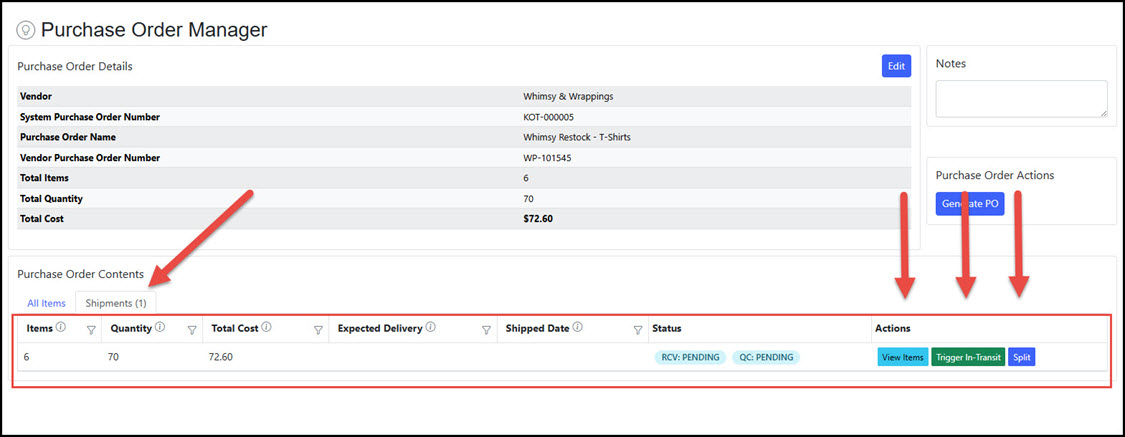
There are three actions for a shipment once the purchase order has been submitted and the shipment has not yet been flagged as In-Transit. The actions are Trigger In-Transit, View Items, and Split. Each are described below.
Prior to the In-Transit stage, the Receiving and Quality Control are in a “Pending” stage on the Shipment tab since the shipment shown has not yet been flagged as In-Transit.
 |
| Trigger In-Transit |
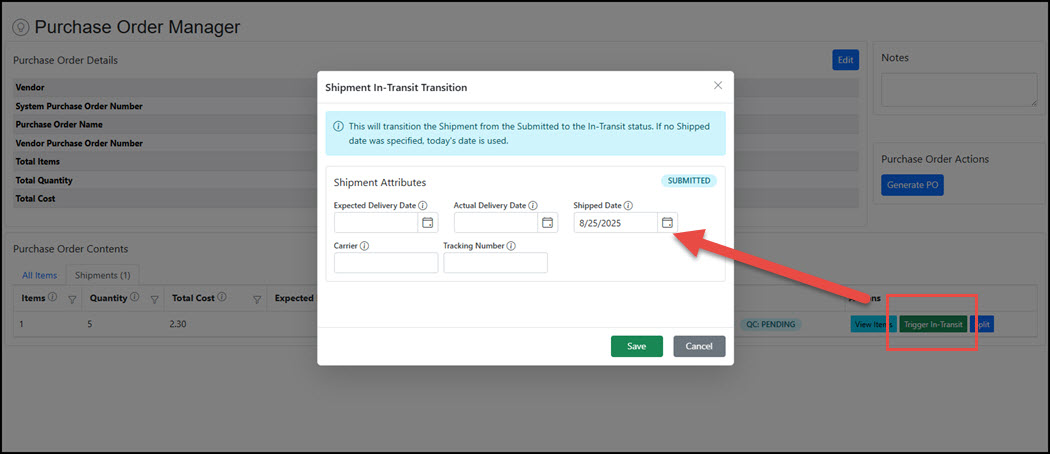
Each shipment includes a Trigger In-Transit button. Execute the Trigger In-Transit when the shipment has left the supplier warehouse for delivery. This moves the shipment’s Receiving state to “Receiving: Not-Started” and creates a Shipment Receiving record used to manage the incoming delivery. Click Trigger In-Transit on the shipment and click Save.
In the Shipment Attributes section, you can optionally enter delivery dates associated with the shipment, general notes, or carrier and tracking number information for managing the inbound shipment.
 |
| View Items |
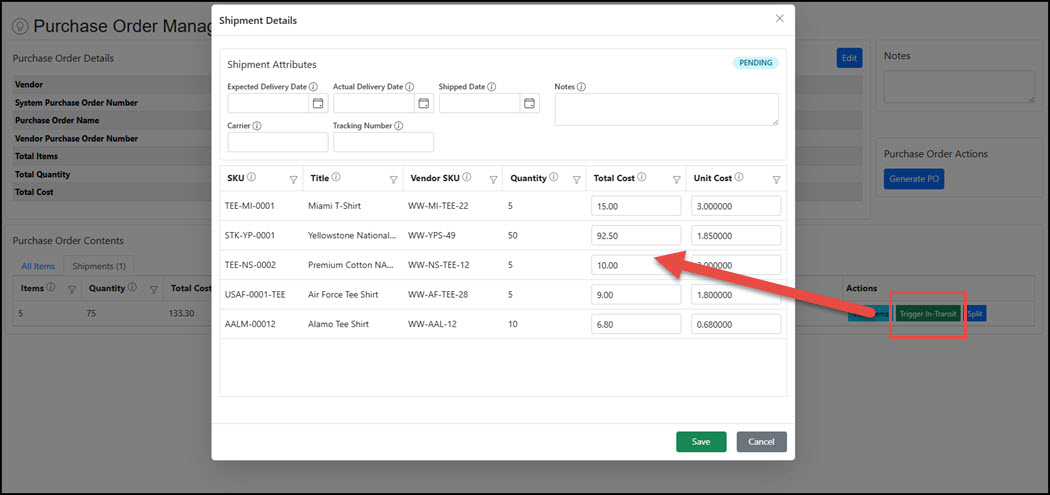
The View Items button accesses the shipment cost details for all items. Here, additional costs can be allocated to the items in the shipment. Currently, this is a manual process to distribute unit cost changes across items in the shipment.
Click the View Items button to access the dialog box and enter additional pricing adjustments. Enter the new Unit Cost to be applied to each item in the shipment and click Save.
Note: Unit Costs can be updated at any time during the purchase order process until the shipment is fully approved and closed.
 |
| Split (Shipment) |
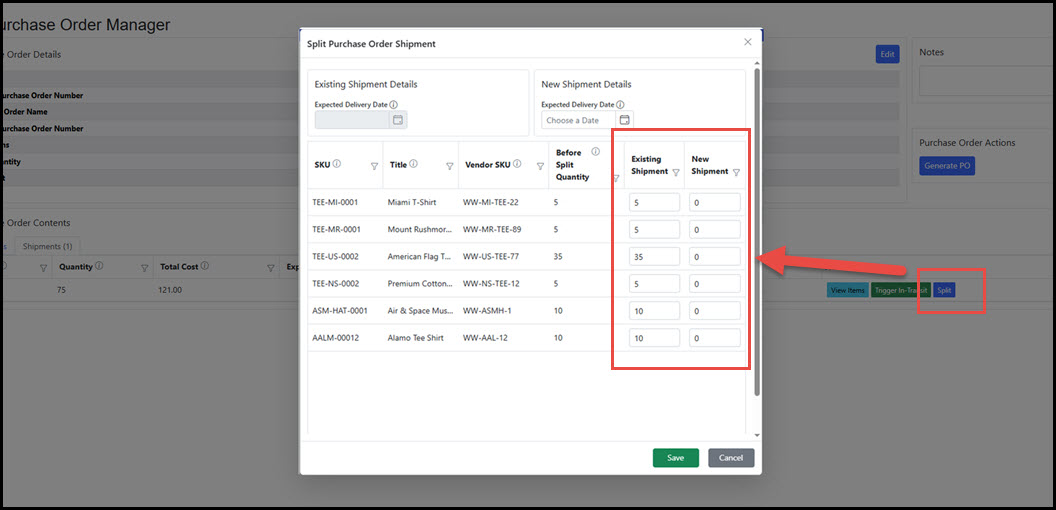
Prior to marking the shipment as In-Transit, shipments may be split into different deliveries. Click the Split button to access the dialog entry screen. The new shipment will be created on the Purchase Order and will be tracked separately. Multiple splitting of shipments is supported.
Set the New Shipment amount for the items and quantities that will be part of the new shipment to track and click Save. Throughout the lifecycle of the shipment, delivery dates, general notes, and carrier and tracking number information can be viewed and managed here as well.
 |
| Shipment In-Transit |
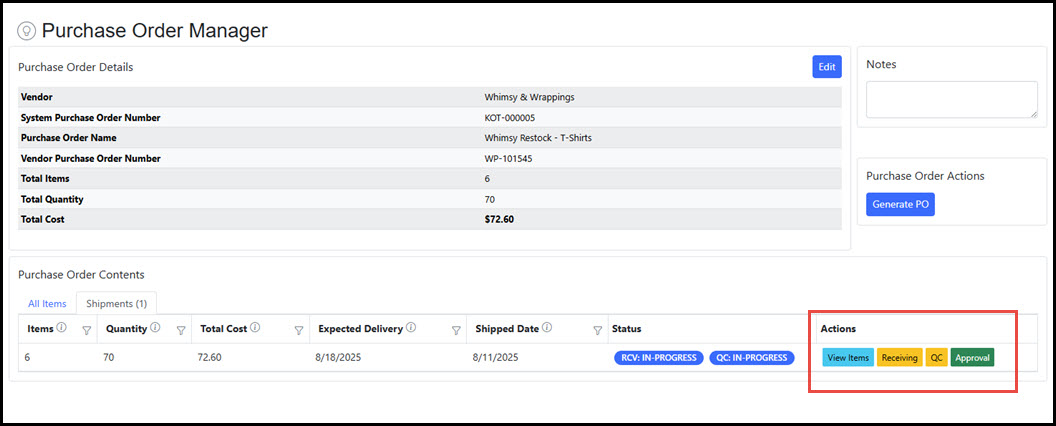
When a Purchase Order shipment is flagged as In-Transit, there are four navigations available in the shipment’s Actions column.
 |