| Purpose | This section describes the Draft Purchase Orders feature in Skuttlefish. |
|---|---|
| Introduction |
The Draft Purchase Orders view allows the initiation of purchase orders for the replenishment of items from vendors set up within Skuttlefish. The wizard walks through the creation of a new purchase order until it is marked for submission to the vendor.
The full Purchase Order process tracks orders to vendors/suppliers from creation through receiving, quality assurance, and approval. Purchase Orders follow several stages of processing through this lifecycle.
|
| Sections | This topic includes the following sections: |
Search:
| Topic | Section | Sub-Section | Item |
|---|
Draft Purchase Orders
Topic Overview
Draft Purchase Orders
| Navigation |
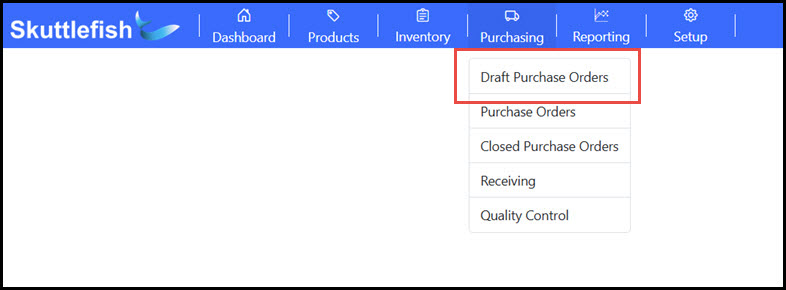
The Draft Purchase Orders Grid is accessible by navigating to Purchasing > Draft Purchase Orders.
 |
|---|---|
| Draft Purchase Orders Grid |
The Draft Purchase Orders grid displays all current Purchase Orders that have been created but have not yet been submitted for order. This grid allows for searching, filtering, and sorting of contents as well as the ability to export to Excel or PDF file formats.
Click Add to create a new Draft Purchase Order.
 |
Draft Purchase Order Wizard
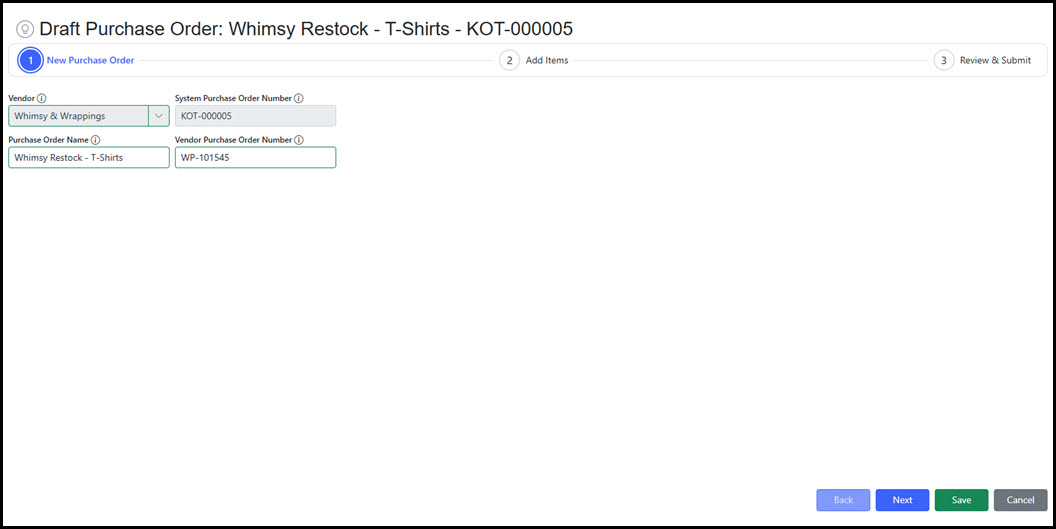
| Step 1 - New Purchase Order |
On Step 1, the following fields define the Draft Purchase Order:
 |
|---|---|
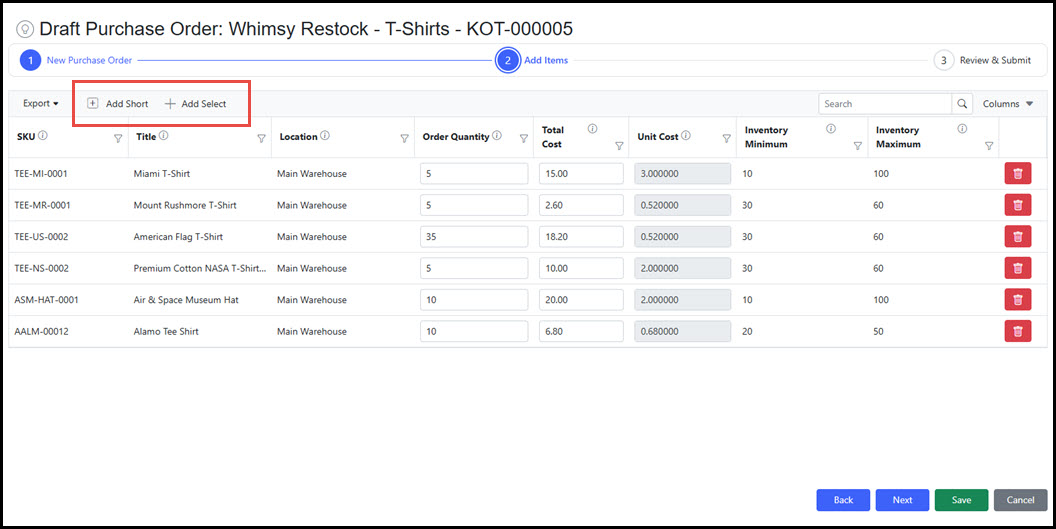
| Step 2 - Add Items |
On Step 2, add products and quantities for the purchase order. This step includes a grid where quantities can be added, edited and deleted. Products may be added in two ways:
 |
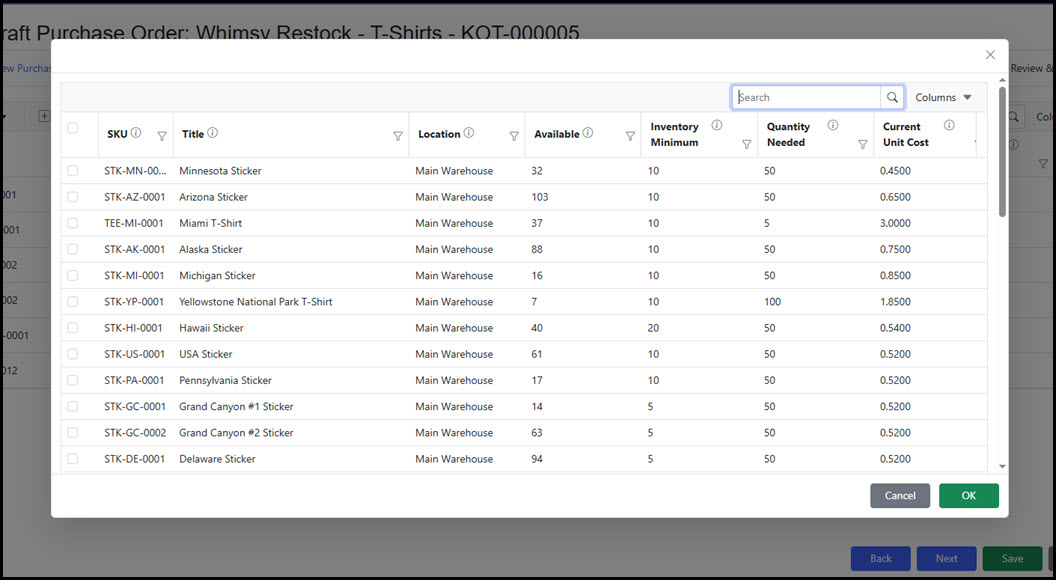
| Step 2 - Add Select |
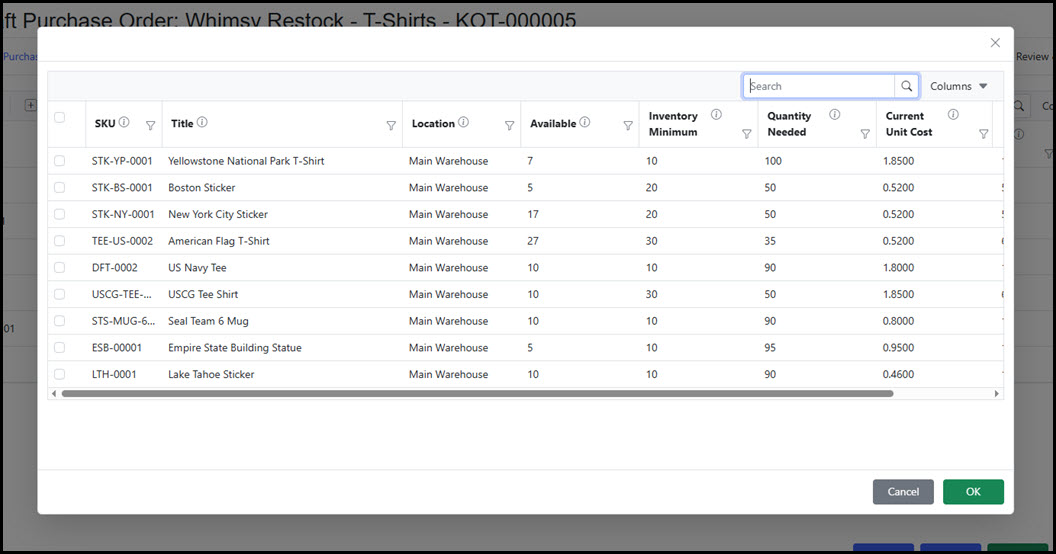
The Add Select screen shows the detail of each SKU (Available, Min/Max, Minimum Order Amount, Quantity Needed, Current Unit Cost, etc.). Click the Column dropdown to access additional details within the grid. The default Quantity Needed field attempts to defualt the amount needed in the order for the item based upon the SKU minimum and maximum settings as well as the vendor minimum order requirement setting for the SKU.
Here, items are only selected, different order counts for each item may be selected within the grid. Select the desired items for the order and click OK.
 |
| Step 2 - Add Short |
Similar to Add Select, Add Short defaults to only those items for the vendor that are equal to or below the Inventory Minimum amount for the SKU.
 |
| Step 3 - Review & Submit |
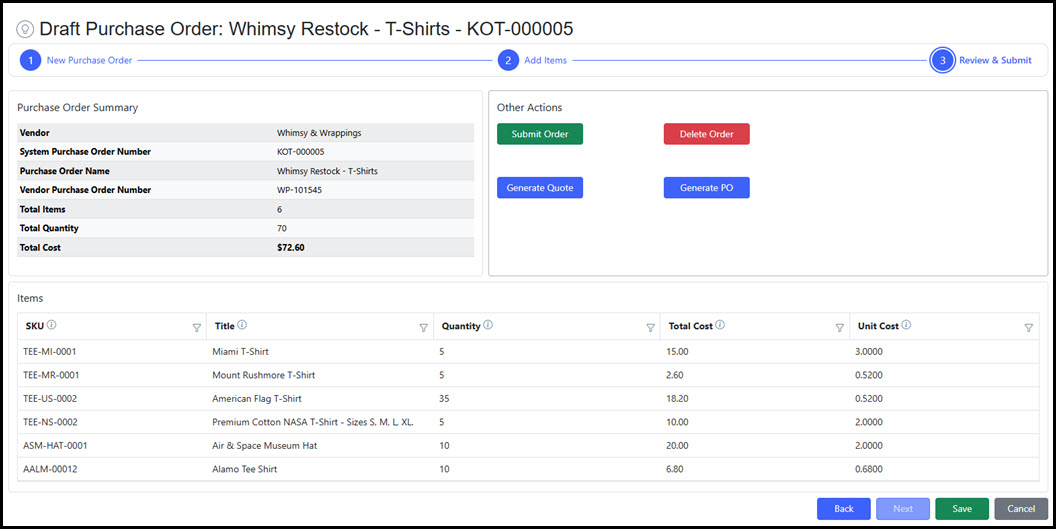
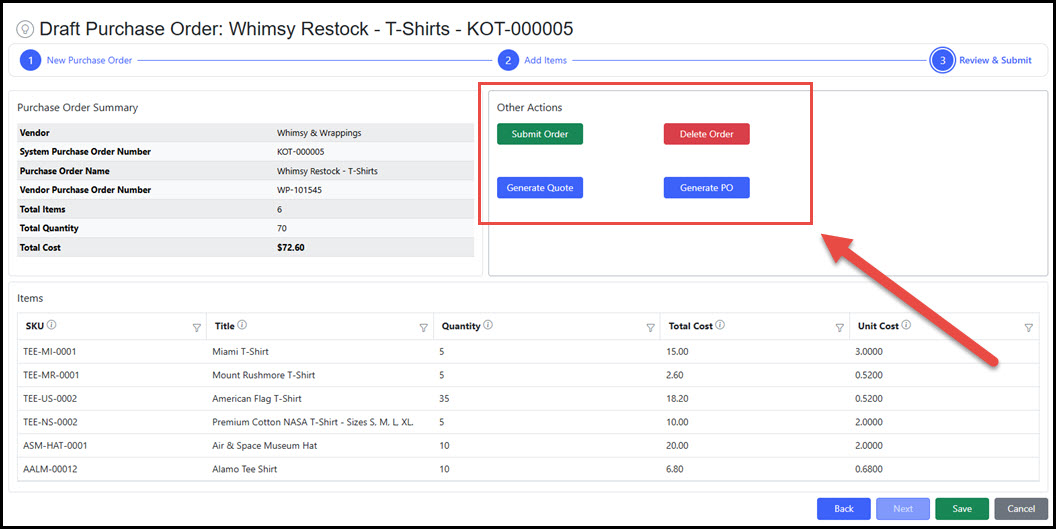
Step 3 displays overall details and final available actions before submitting the purchase order.
 |
| Step 3 - Purchase Order Summary |
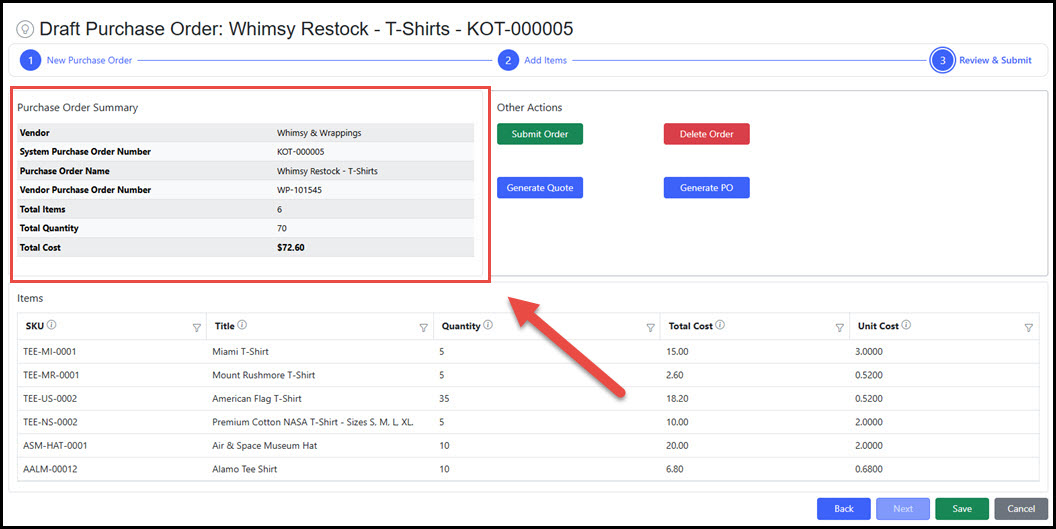
The Purchase Order Summary area displays purchase order information including the total items, quantities, and cost.
 |
| Step 3 - Items Grid |
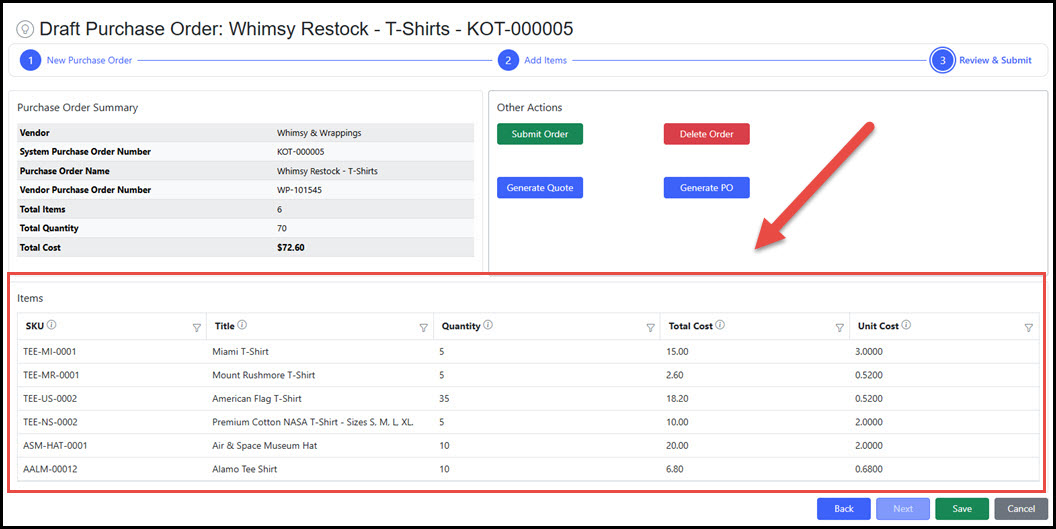
The Items Grid is a detailed display of the individual SKUs in the purchase order including the quantity, total cost, and current unit cost.
 |
| Step 3 - Other Actions |
These are the key actions that can be executed on the Draft Purchase Order.
 |
| Step 3 - Generate Quote |
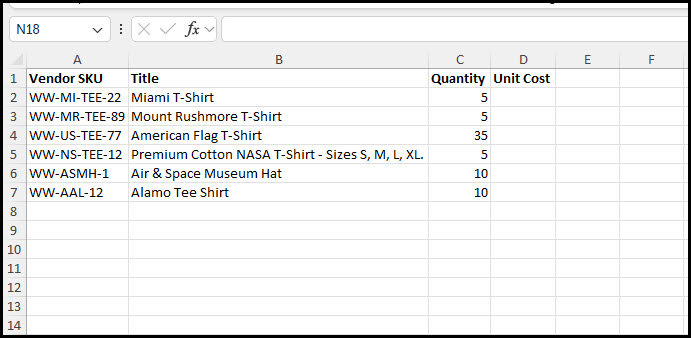
Click Generate Quote to produce the quote sheet for vendor assigned pricing. The quote sheet includes the product title and vendor SKU ID for better identification. Each item includes the total quantity in the order and an empty column to fill in the unit cost received from the vendor. Below is an example of a generated quote file used for capturing pricing from a vendor. Variations to the Generate Quote format can be provided.
 |
| Step 3 - Generate Purchase Order File |
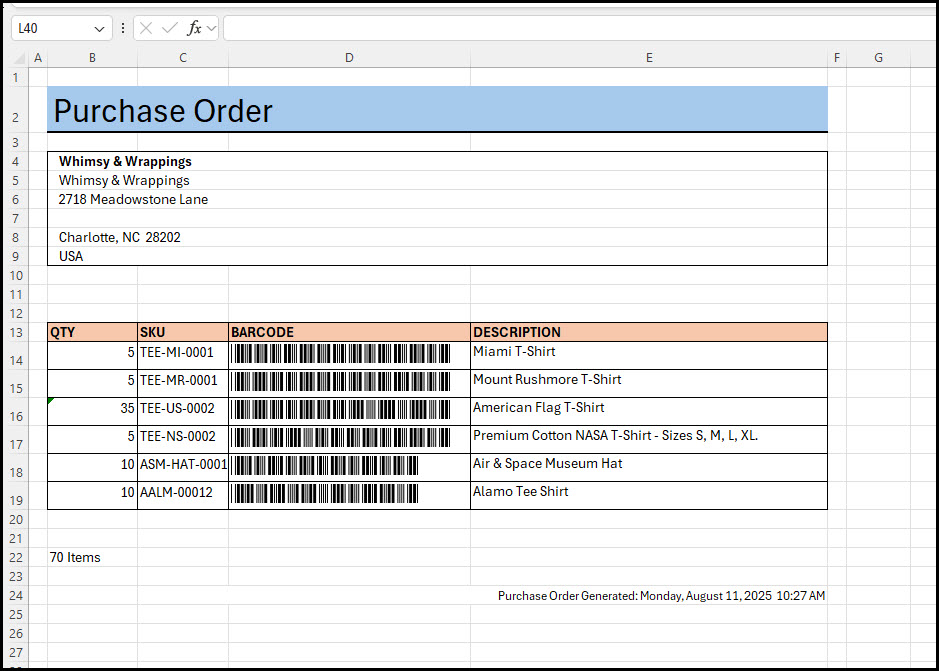
Click the Generate PO button to create the purchase order file. Produces the purchase order that can be used for the vendor/supplier in a formatted Excel spredsheet file. Formats can be custom configured for each vendor if necessary.
 |
| Step 3 - Submit Order | Submitting sets the Purchase Order status to "Submitted" where it is then maintained in the Purchase Order Management area. Once submitted, the Draft Purchase Order process is complete. |
Draft Purchase Orders - Video Overview
| Overview | The video below provides a short walkthrough of the Draft Purchase Order process that creates a new Purchase Order in the system. |
|---|